Goal: a tiny collectible game (15–25 minutes)
Build a small room and a collectible from built-in Blocks/Cells, then add a success message. The Coin is a Cell you create yourself; no downloaded model is needed. This is a one-objective challenge that uses AeoScript's touch callback.
Before you begin
You need Worldkiln and a project. The editor includes building tools and Character/controller options for testing gameplay; importing a third-party model is optional. If your project has no active Player, select an included Character and Controller in Project Settings before entering Play.
1. Build a small World
Follow Your first World to create a solid floor and a SpawnPoint. Add a few Blocks around the edge so the play area is easy to recognize. Save your World.
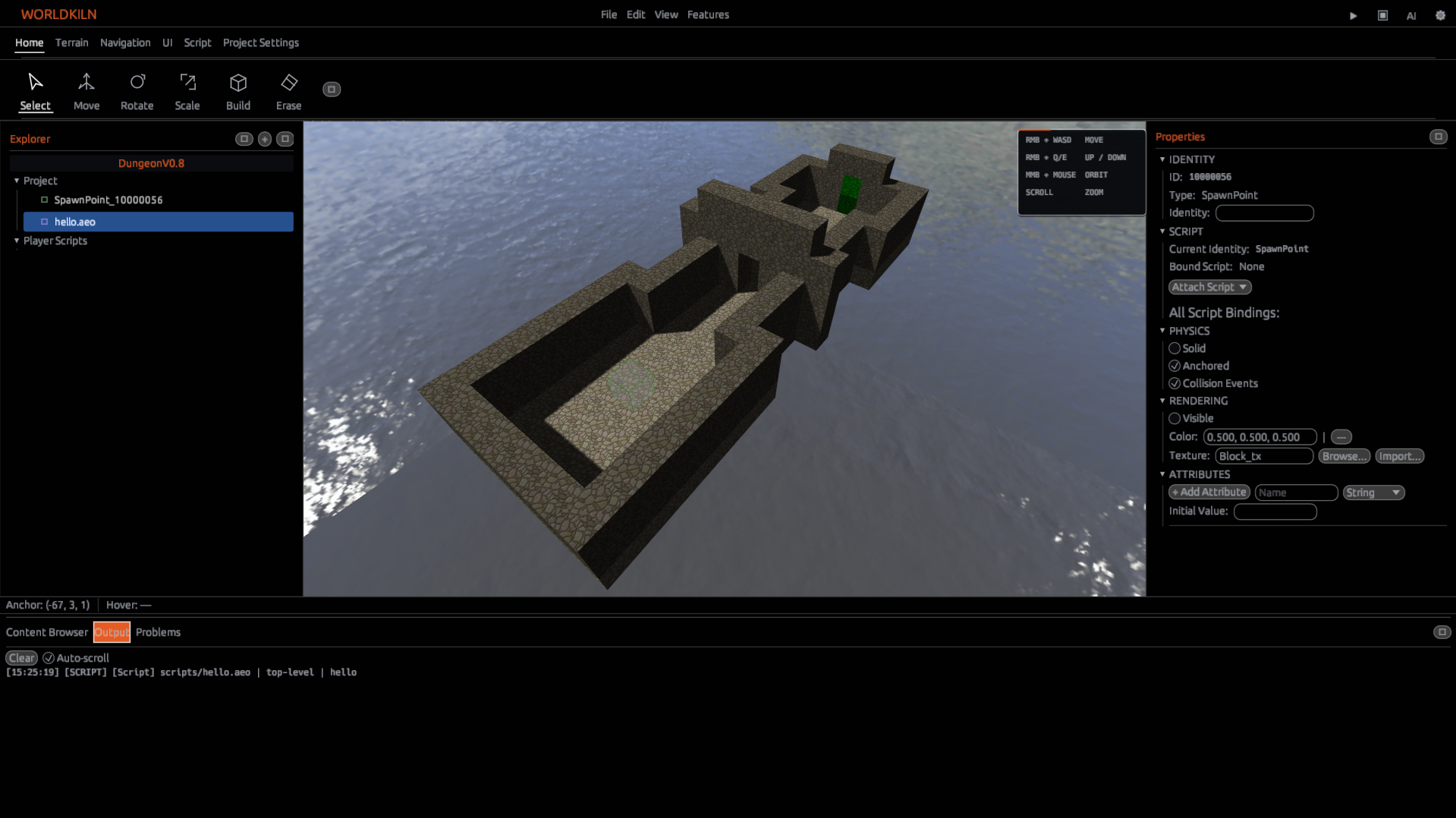
Figure 8 — Small playable area with a SpawnPoint.
2. Place the objective
Create a Cell named exactly Coin and place it where the Player can walk into it in Play mode. This Coin is a simple Cell you create, not a bundled asset. Give it a distinct color so the player knows what to collect. Check that the Cell can be touched in Play mode.
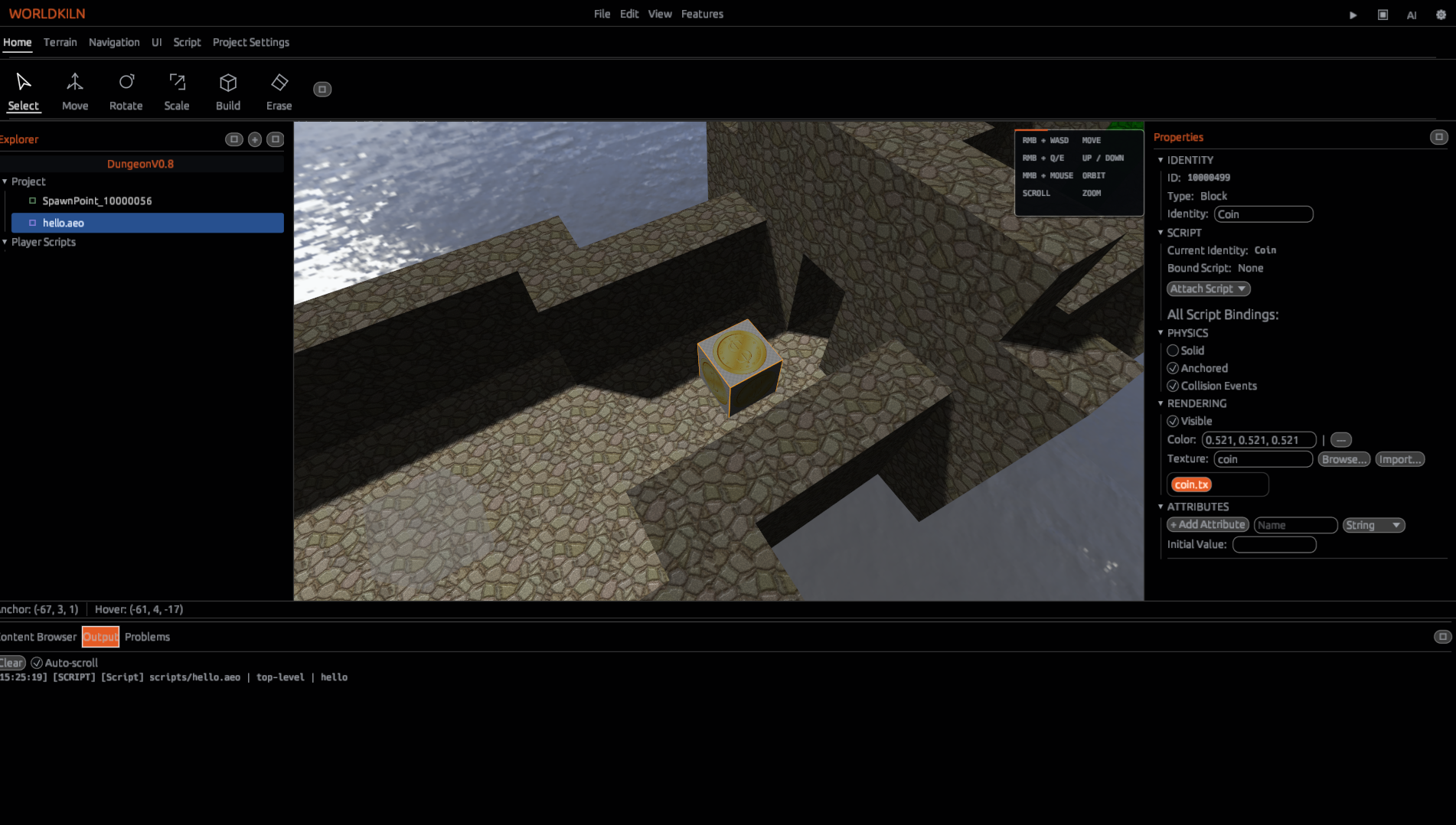
Figure 9 — Coin positioned in the World.
3. Write the game script
Create scripts/coin.aeo. The script runs independently: you do not attach it to the Coin or to an Entity.
const coins = find("Coin")
if basket.len(coins) > 0 {
    const coin = coins[0]
    coin.on_touch = fn(thing) {
        const player_entity = get_entity("Player")
        if thing != player_entity {
            return
        }
        coin.visible = false
        coin.solid = false
        debug.log("You win! Coin collected")
    }
}
The first line finds the named Coin. The length check prevents indexing an empty result. The callback waits for contact and checks that the touching object is the Player. When collected, the Coin becomes invisible and non-solid and Output announces success.
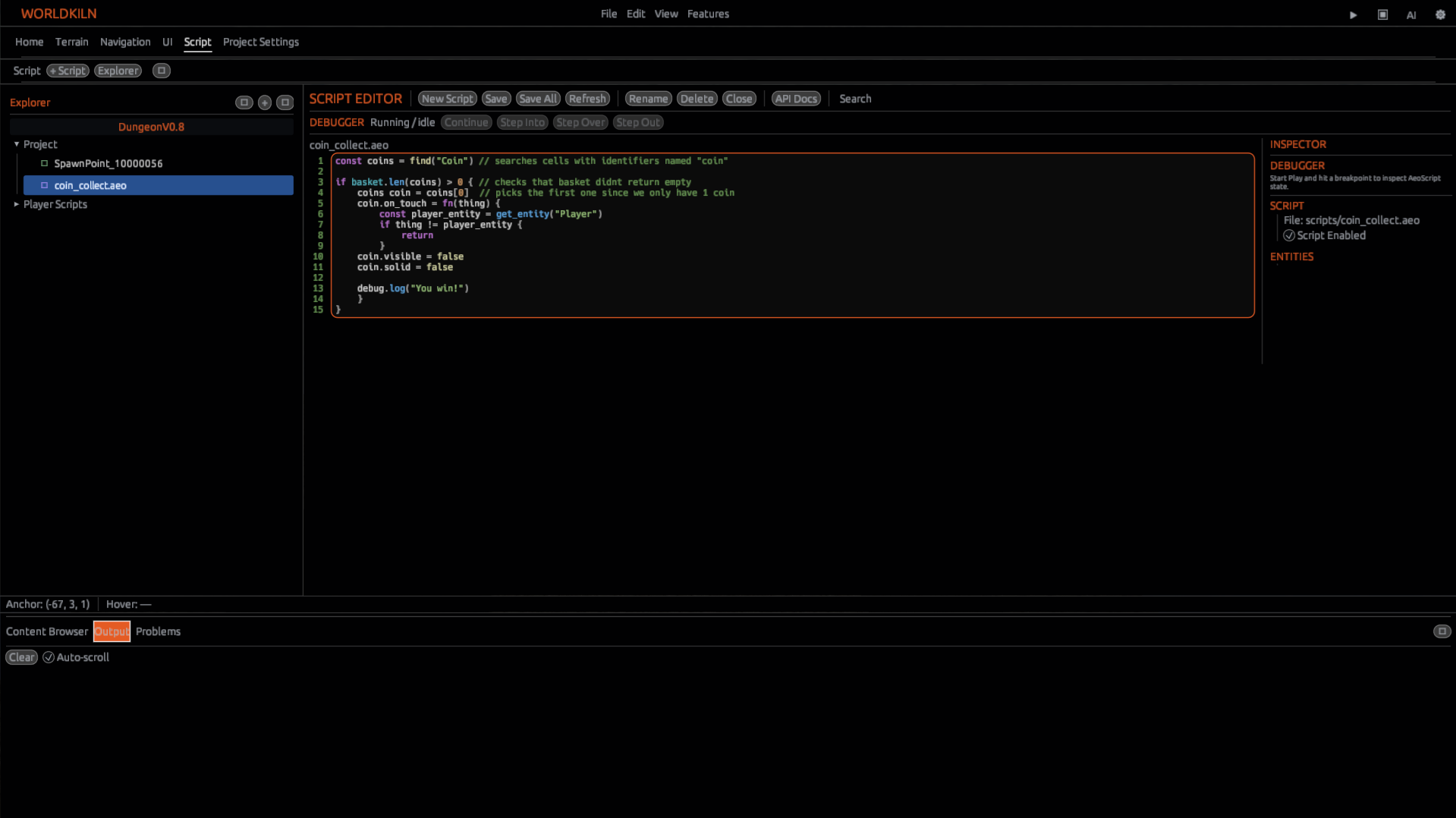
Figure 10 — The standalone Coin script.
4. Play and win
Save, start Play, and walk your Player into the Coin. It should disappear; open Output to see You win! Coin collected. If your project does not yet have an active Player, use the included Character/controller options in Project Settings—you do not need an external model for the challenge.
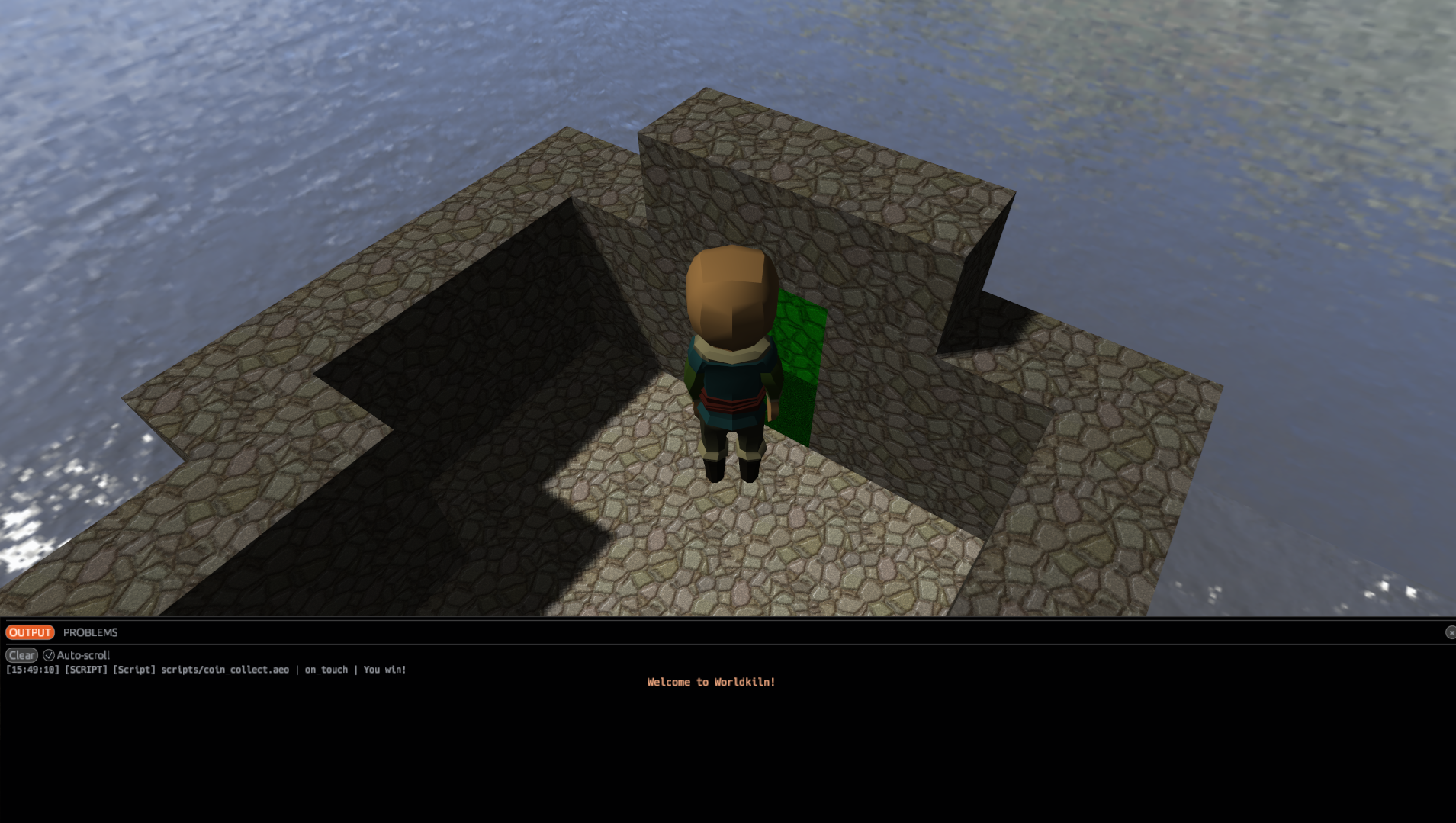
Figure 12 — Output confirms success.
Check your work
- The active Player starts safely on the floor.
- The Coin is visible before contact.
- Touching the Coin makes it disappear and prints the success message.
- Stopping and restarting Play restores the authored Coin.
If nothing happens, check the exact name Coin, verify the script is saved in scripts/, and inspect Output for the first error. If other objects collect the Coin, recheck the Player comparison.
Next: Interactive Object explains this callback in more detail. Events shows how to extend the game later.