Prepare a GLB model
In Blender, open your model and export it as a glTF 2.0 binary (.glb) file.
For animated Characters, include the armature or compatible node animations. Export the model with its materials, texture images and animation clips.
Import the model
- Open your project and choose View → Asset Manager.
- Select Import → Files... and choose the GLB.
- Review the import list, then click Import selected assets.
- Open Actors, select the imported Actor, and check its mesh, materials and animations.
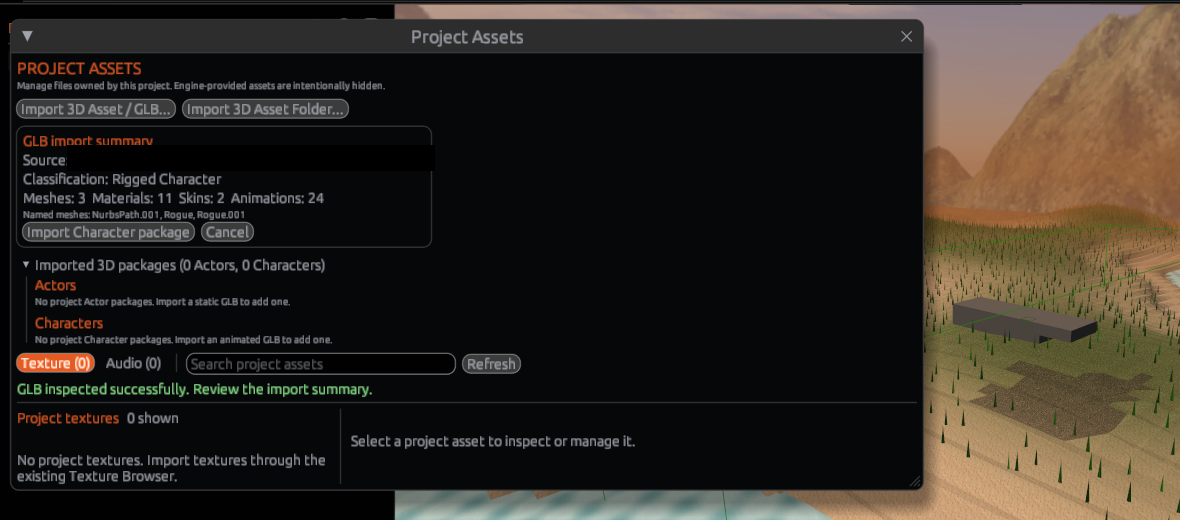
Each GLB imports as one Actor, even when it contains multiple meshes. Static models work as regular Actors; compatible rigged or node-animated models also work as Character sources.
Place a static Actor
In Content Browser, open Actors and drag the imported model into the viewport. Select it in the World, then set its position, rotation, scale and collision properties.
Create an animated Character
For a model with a compatible skeleton or animation:
- In Actors, choose Create Character for the imported Actor.
- Set the Character name and Source Actor.
- Review the preview and animations, then set scale and optional Material, Controller and Camera.
- Click Create.
- Set your Player Character, save and try Play.
See How to create a Character for the complete tutorial, including AssetPacks.
Next: Supported assets · Asset Manager