Open the AI Assistant
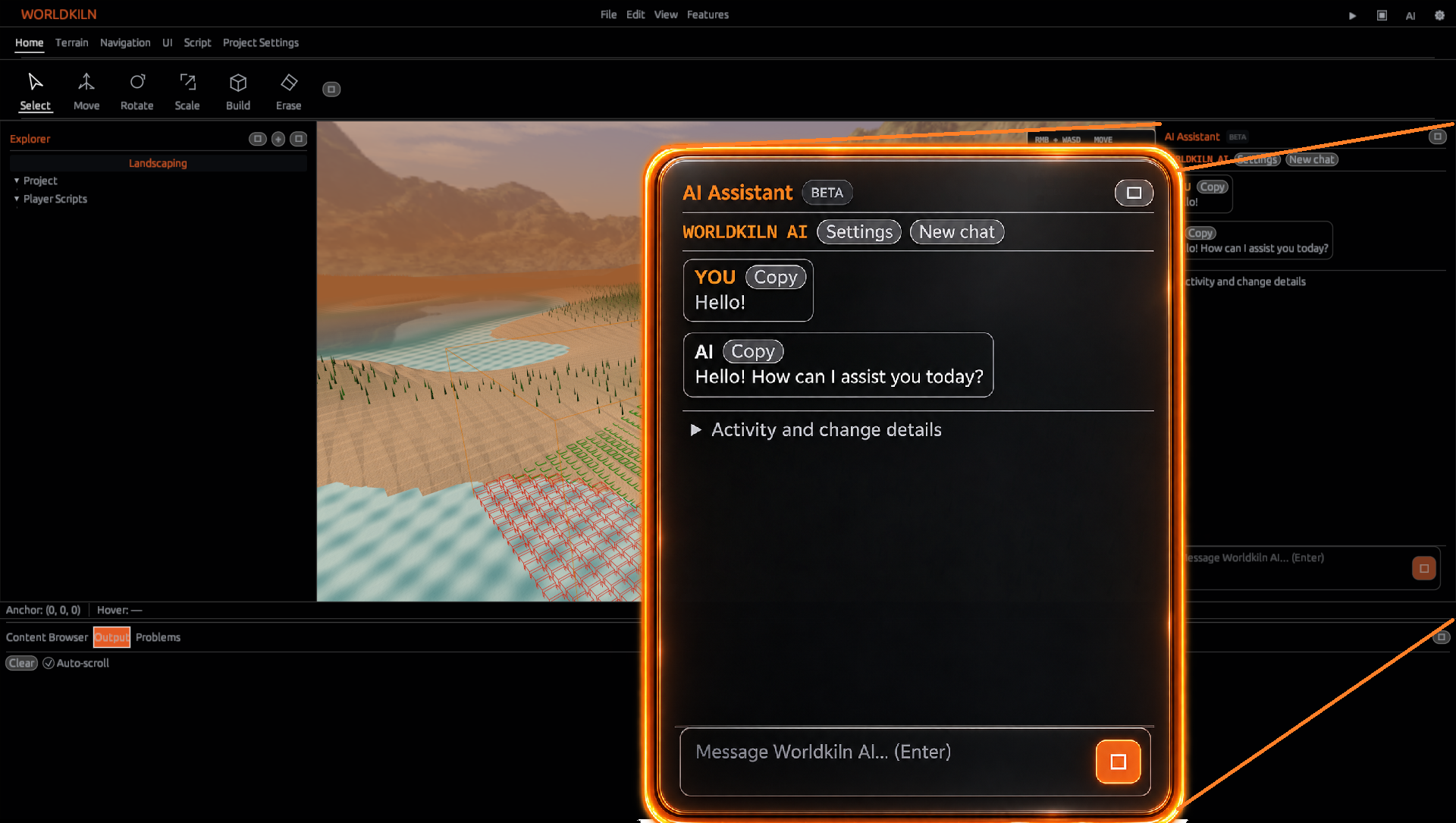
Open a project and choose Features → AI Assistant. The Assistant appears in the editor's side panel.
Use the Assistant to ask about your project, inspect scripts and editor objects, and request supported changes through the same conversation.

Choose a model
Open the Assistant's provider controls and select a service:
| Provider | Connection |
|---|---|
| Google Gemini | Gemini API |
| OpenAI | OpenAI API |
| OpenAI-compatible (custom) | A compatible custom API endpoint |
| Ollama (local) | A locally running Ollama server |
Enter the provider's API key where required, choose an available model, and configure the endpoint when using a custom or local provider.
Once a model is selected, enter a request in the message field. Enter sends the message; Shift+Enter adds another line. Use Stop to cancel an active response.
Ask about the current project
Open the project you want to work on, then ask a specific question. For example:
Which scripts refer to the Actor named Guard, and where are they located?
The Assistant can use project tools to inspect the current hierarchy, list and read project text files, search scripts, and consult AeoScript documentation. Ask follow-up questions when you need more detail.
Request editor changes
The Assistant can use supported tools to create or update scripts, attach a script to an Actor, create an Actor or Cell, change supported resource properties, select project nodes, and save the project.
Describe the result you want. For example:
Create a script for the existing Guard Actor that moves it to a destination and logs when navigation finishes.
Review the request and resulting activity in the Assistant panel. For script changes, inspect the generated code in the Script Editor and test it in Play.
Choose how changes are approved
The Assistant's agent settings offer three access modes:
| Mode | Behavior |
|---|---|
| Ask Before Changes | Requests approval before applying supported editing operations |
| Auto Apply | Applies supported editing operations using the configured access policy |
| Full Access | Enables the broader set of agent operations |
When approval is required, the Assistant shows the proposed operation. Select Approve operation to proceed or Reject operation to cancel the request.
The Assistant also includes parser-first validation and automatic correction settings for AeoScript generation. These can validate drafts and attempt corrections before applying them.
Review and reverse changes
Expand Activity and change details to follow the tools and edits used in a request. Where available, file-change cards show what was added or removed, with Keep and Revert actions.
Use Undo latest agent change to reverse the most recent eligible operation. The editor's usual Save and Play workflow remains the way to check and finalize project changes.
Work through a complete example
- Open a project that contains an Actor.
- Ask the Assistant to find the Actor and inspect its attached scripts.
- Ask it to write a short movement script for that Actor.
- Review and approve the requested operation when prompted.
- Open the script, review its code, and start Play.
- Read Output for its result. Request a revision if the behavior needs adjustment.
For scripting concepts, see AeoScript and Actor APIs. For editor navigation, see Editor Workspace.