Goal
Understand two separate ways to work with a gameplay camera: provide a camera/controller script package, or adjust the camera during Play. Neither requires an Entity attachment for a standalone script.
1. Choose your approach
For repeatable game controls, create or import an AeoScript controller/camera package under the project's relevant controllers/ or cameras/ area, then select the package in the appropriate project settings if exposed by the installed build. The controller determines movement decisions; Worldkiln still resolves collision and gravity.
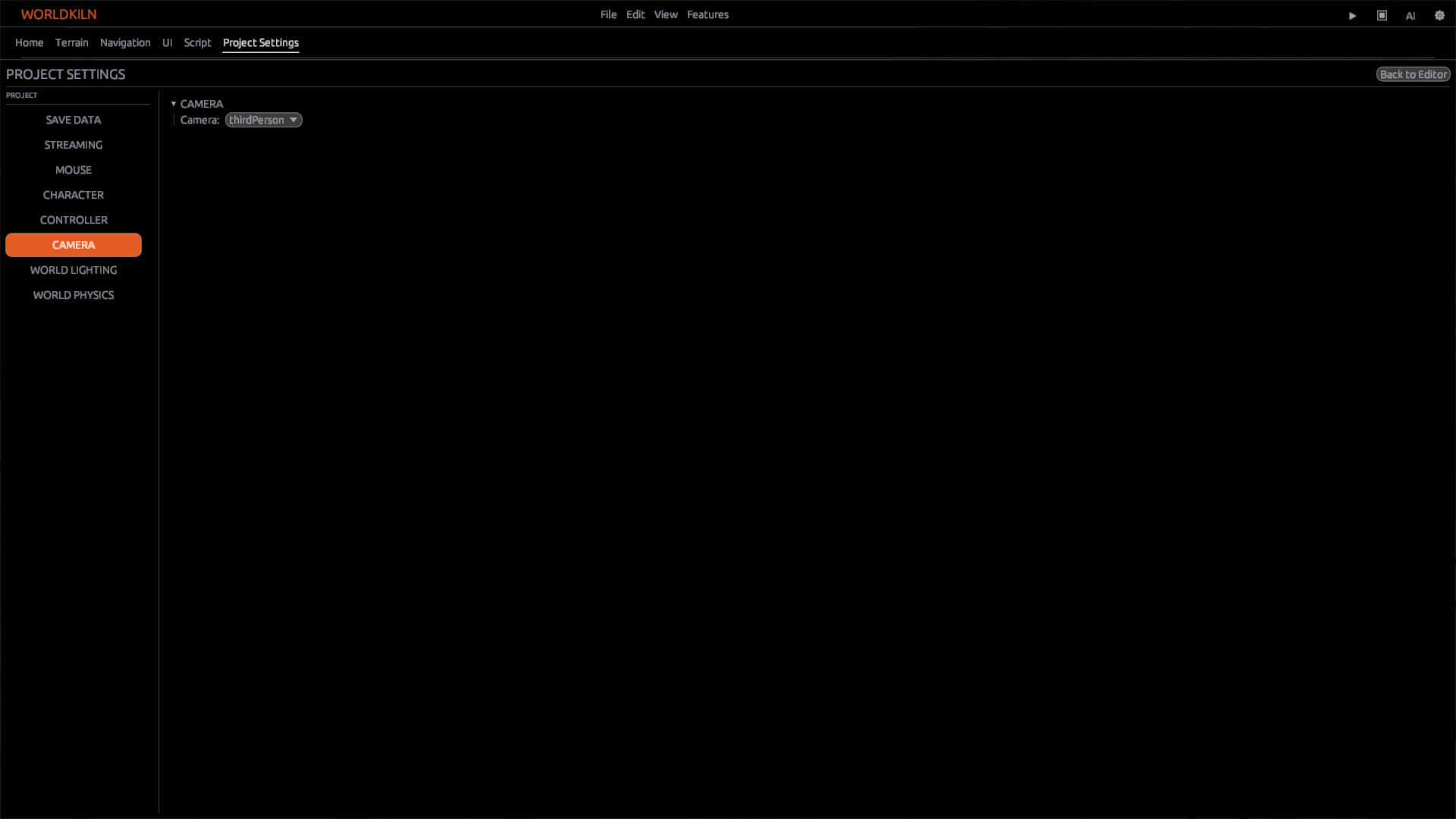
If those package-selection controls are not present in your public version, do not claim that copying a script automatically enables it. Verify the installed version's supported settings before following that path.
2. Adjust the camera during Play
In a standalone script, the public Camera API exposes position, target and orientation calls. Example:
camera.set_position(0, 5, -10)
camera.set_target(0, 0, 0)
debug.log("Camera position set")
Camera control is a Play-mode operation; it does not move the editor viewport. Start Play and check the rendered view and Output.
Screenshot 25: assets/docs/tutorials/25-camera-play-result.png — gameplay camera view.
3. Keep collision and Player setup separate
For third-person obstacles, physics.resolve_camera_collision can adjust a requested view position. A camera script does not create a playable character or supply a controller automatically.
Checkpoint
Explain which script owns camera behavior, which settings select it, and which runtime calls adjust the active view. Save authored package selection before restarting Play.
Next: Camera and Camera API.