Open the Asset Manager
Select View → Asset Manager or Features → Asset Manager. Use View → Content Browser to browse project assets in the lower dock.
Choose from Actors, Characters, Controllers, Cameras, Textures, Materials, Images, Video, Audio, Effects, and Scripts. Select an asset to open its preview and details.
Import files
- In Asset Manager, choose Import → Files... or Import → Folders....
- Select the model, image, sound, video or Effect files.
- Check the import list and resolve any file-name conflicts.
- Click Import selected assets.
- Select the imported asset from its category.
To add an AssetPack, choose Asset Packs, select the pack, then click Install Selected.
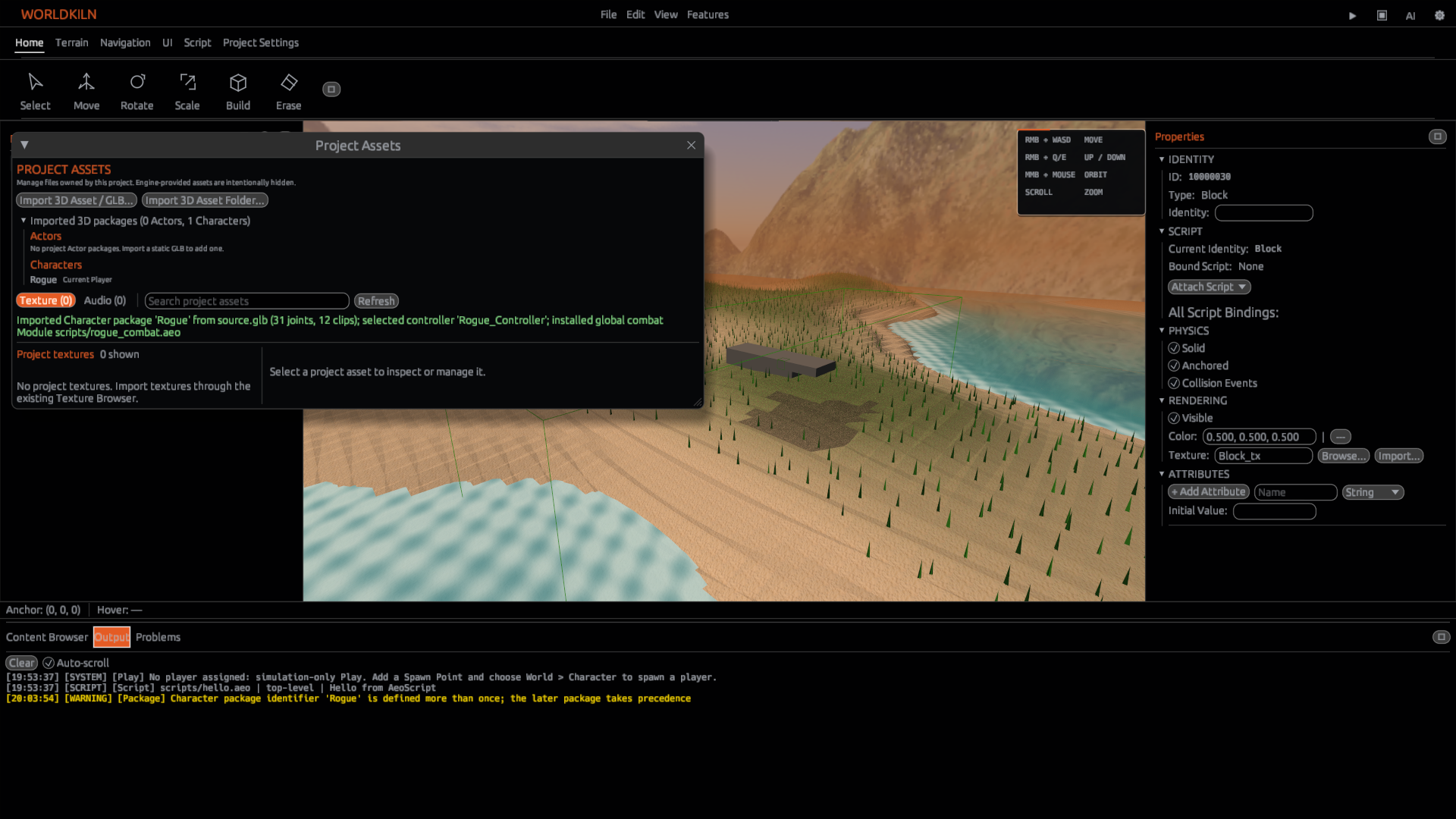
Manage an asset
- Select an asset and choose Manage asset.
- Change its display name or group, or select Replace file....
- Choose Delete... when you no longer need an asset. Check any references before confirming.
Use the asset
Drag an Actor from Content Browser into your World. Use the Properties panel to change its position, scale, or collision settings.
To use a rigged Actor as a player, follow How to create a Character.
Next: Asset Manager · Supported assets · Importing 3D Models