Import images and videos
Worldkiln supports Image and Video controls in game UI documents. Use them for title art, instructions, full-screen cinematics, and other interface media.
Import a file
- Open your project and go to the UI workspace.
- Add an Image or Video control to the UI document.
- Use the control's Source setting to choose an existing project image or import a video.
- Place and size the control in the UI canvas, then save your document.
- Start Play to preview the result.
Images support PNG and JPEG. Video uses MP4 files. Video decoding on Windows uses the available Media Foundation H.264 codec.
A typical imported image path looks like textures/title.png; an imported video uses a path such as Media/intro.mp4. Select the asset from your project's media catalog so its path stays project-relative.
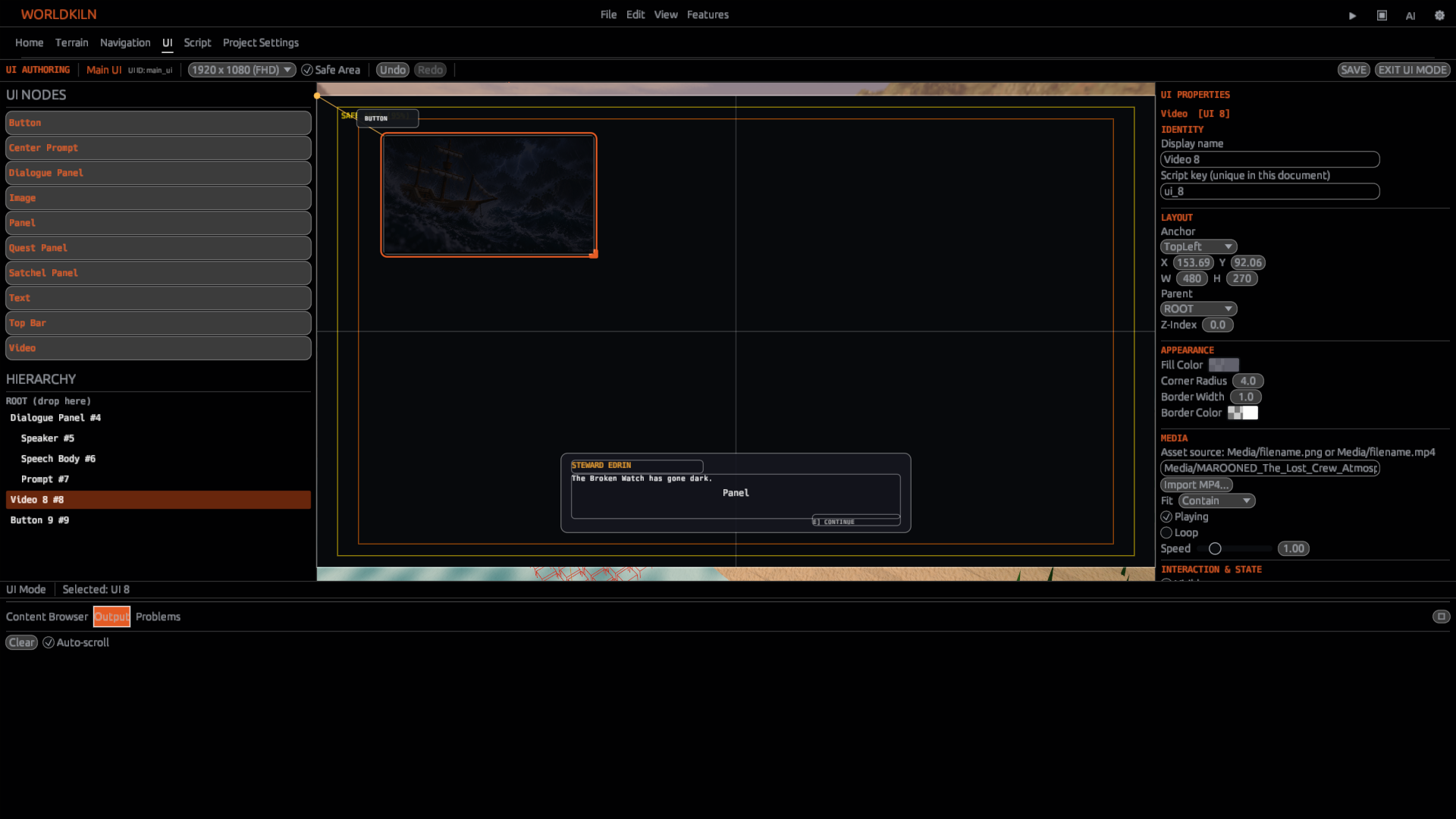
Set the appearance
Use Fit to choose how the image or video occupies its control:
| Fit | Result |
|---|---|
| Contain | Keep the full image visible inside the control |
| Cover | Fill the control, cropping excess content |
| Stretch | Fit the control dimensions |
You can set the control's size, position, anchor and other ordinary UI properties in the same way as a Button or Text control.
Play a video
A Video control has Playing, Looped, and Playback Rate properties. Use them to start or pause a clip, repeat it, or change playback speed.
const intro = ui.new("Video")
intro.position = [0, 0]
intro.size = [640, 360]
intro.source = "Media/intro.mp4"
intro.fit = "Contain"
intro.looped = false
intro.playback_rate = 1.0
intro.playing = true
Use an MP4 already imported into the project. Set intro.playing = false when you want to pause it.
Display an image through AeoScript
const title_art = ui.new("Image")
title_art.position = [20, 20]
title_art.size = [320, 180]
title_art.source = "textures/title.png"
title_art.fit = "Contain"
These controls can also be created and configured in the UI editor. See the UI guide and UI API for the complete controls and properties.
Check your media
Keep media files inside the project's asset storage. Image sources use textures/ or Media/ paths; MP4 sources use Media/. Project media references use forward slashes.
Preview a video in Play. The editor can display its first frame; during Play, the video advances. For an MP4 that doesn't play, inspect Output for a decoding or source-path error, then verify the asset path and video format.
Next: Creating your first game interface and Managing Your Project Assets.