Goal and prerequisites
Learn where to build, edit, test and save a World. Start with an empty project; no character or imported asset is needed. Editor navigation and gameplay camera control are different.
1. Open a project
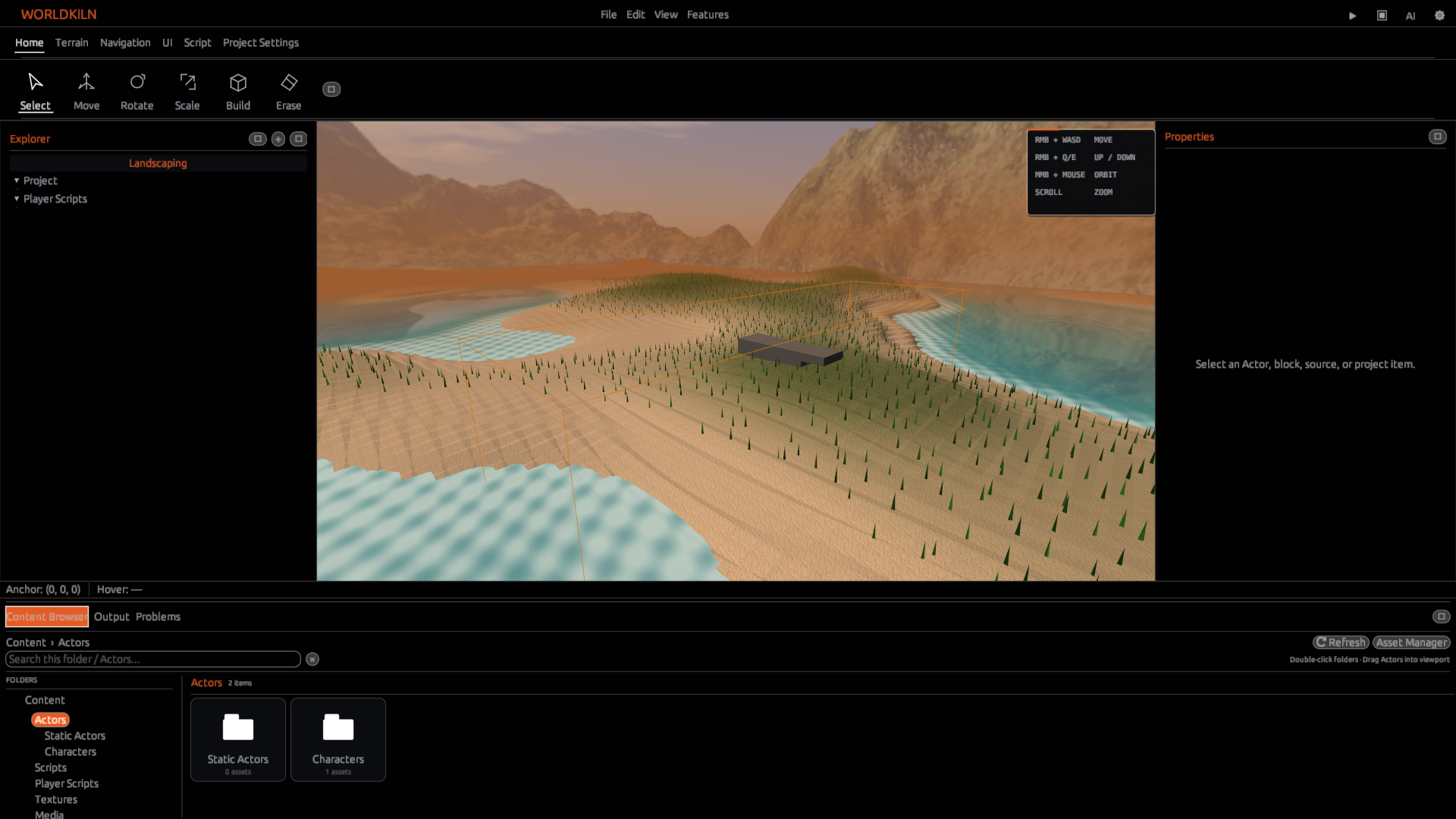
From Worldkiln Home, create a new project or open an existing one. The viewport is the 3D authoring area. Project Explorer lists project content; the Inspector shows properties of the current selection. Locate the script editor and Output before entering Play.
2. Select one object
Create a Block using Building, then select it in the viewport. Confirm that the Inspector updates for that Block. Change one visible property and observe the result. If a different object changes, reselect and confirm the active Inspector target.
3. Make and undo an edit
Move or rotate the selected object with the available transform controls. Undo once, then redo once. Verify the same object returns to its previous and edited position. Test keyboard shortcuts only after checking Settings for the current mappings; do not assume a key is universal.
4. Save and test
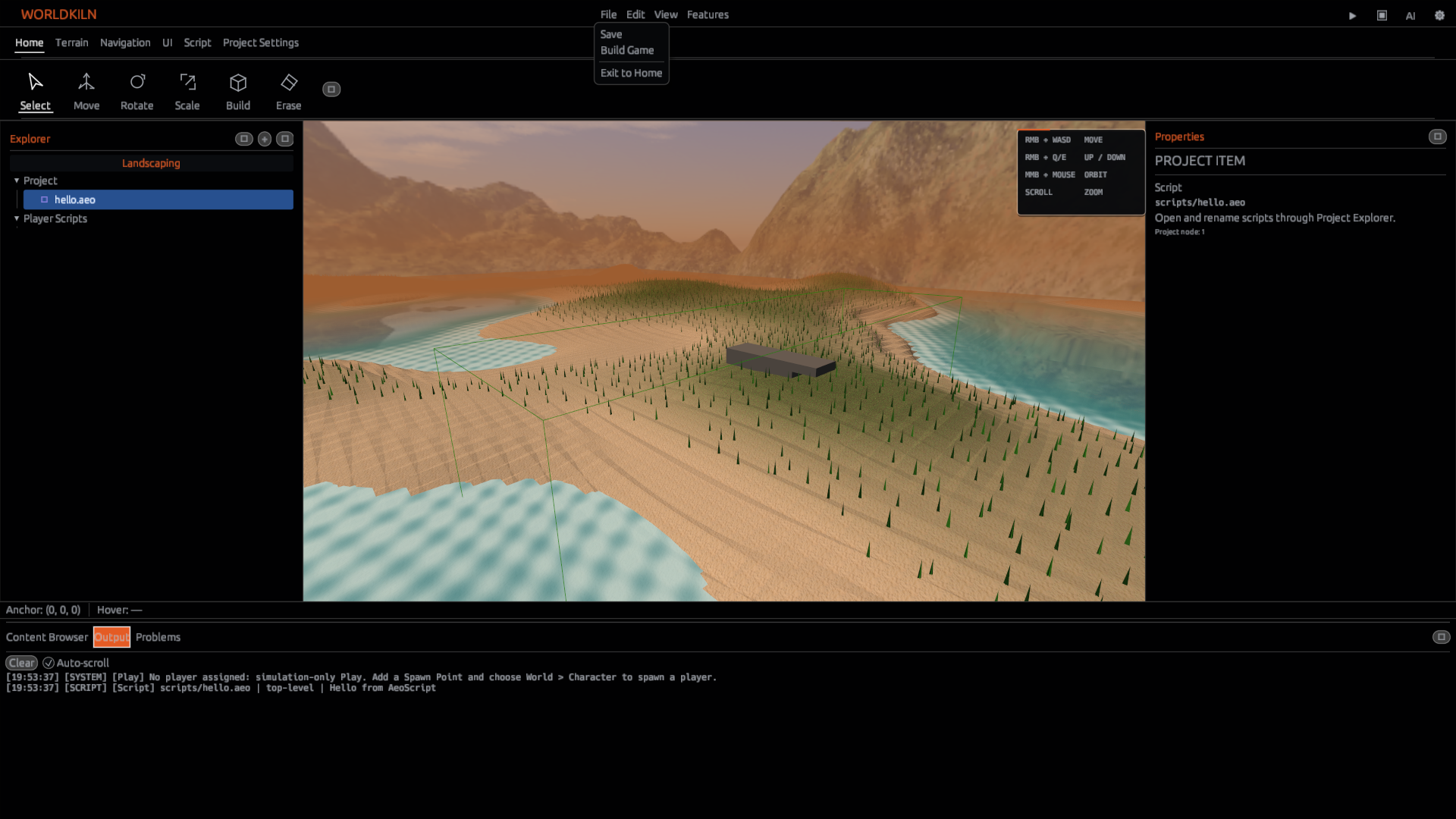
Save the authored World, start Play, and inspect the scene. Stop Play to return to the editor. Play-only state is not a substitute for saving authoring changes. When testing movement, use the project's Player or select Worldkiln's included Character/controller options; third-party assets are optional.
Checkpoint
You can name the selected object, find it in Project Explorer, undo and redo an authored edit, and return from Play without losing your saved World.
Next: Finding features or Your first World.