Create a landscape
Open Terrain from the workspace tabs, or choose Features → Terrain / Landscaping. The Terrain workspace contains the generation layers and the Landscaping tools.
Generate Terrain
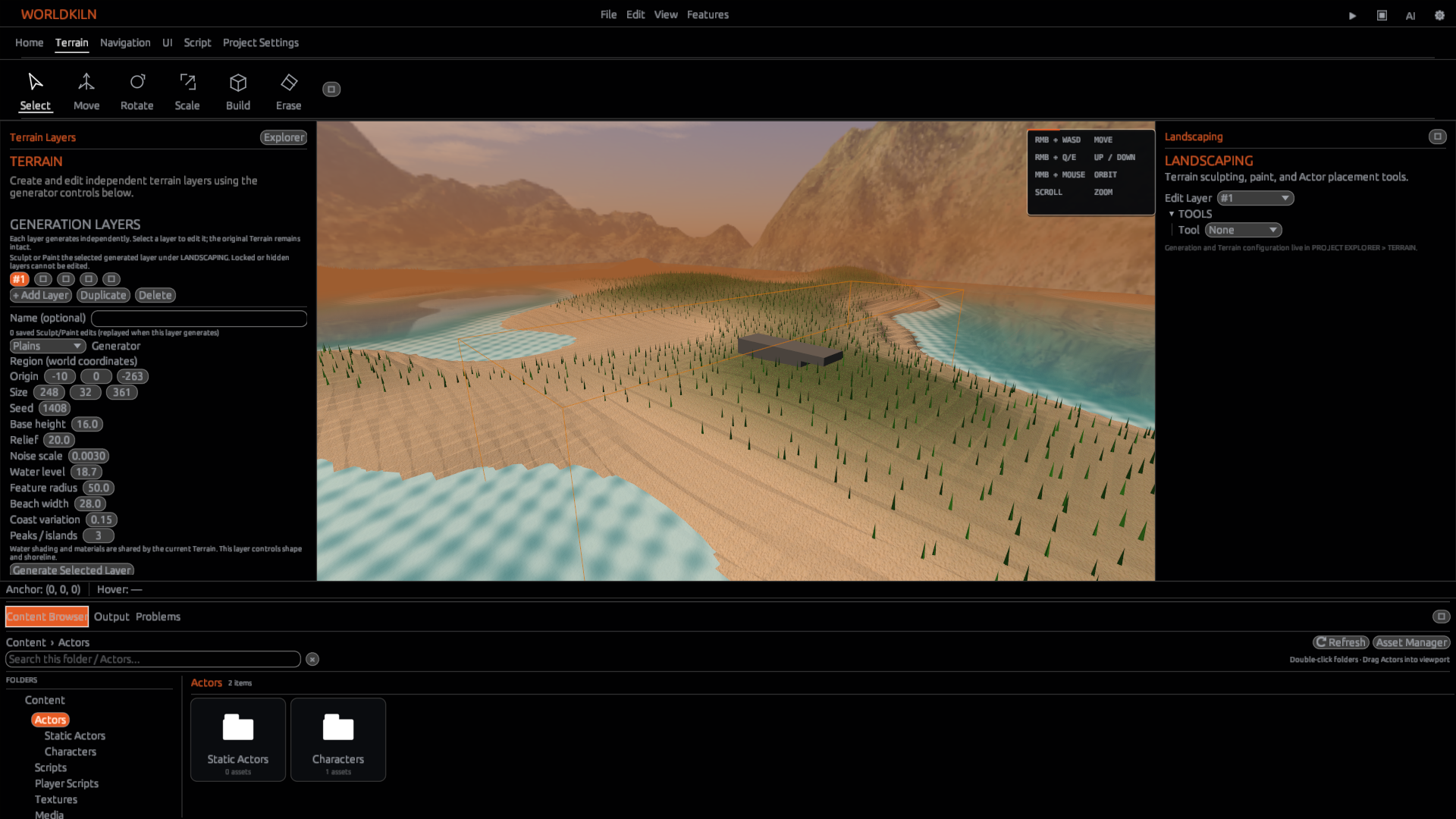
- In Generation Layers, select + Add Layer.
- Select the layer and choose a generator: Plains, Hills, Mountains, Islands, or Archipelago.
- Set Origin and Size for the region in world coordinates.
- Adjust the Seed, Base height, Relief, Noise scale, Water level, Feature radius, Beach width, Coast variation, and Peaks / islands to shape your landscape.
- Select Generate Selected Layer and inspect the result in the viewport.
Change any of those settings and select Generate Selected Layer again to update that layer.
Organize your layers
Each layer initially displays a number such as #1. Enter a name in Name (optional) when you want to identify it.
Use the layer controls to select, show or hide, lock or unlock, reorder, duplicate, and delete layers. Duplicating a layer copies its generator settings to a new unnamed layer.
Select the layer you want to edit before sculpting or painting. The Edit Layer selector in Landscaping uses the same layer selection as the generation controls.
Sculpt the land
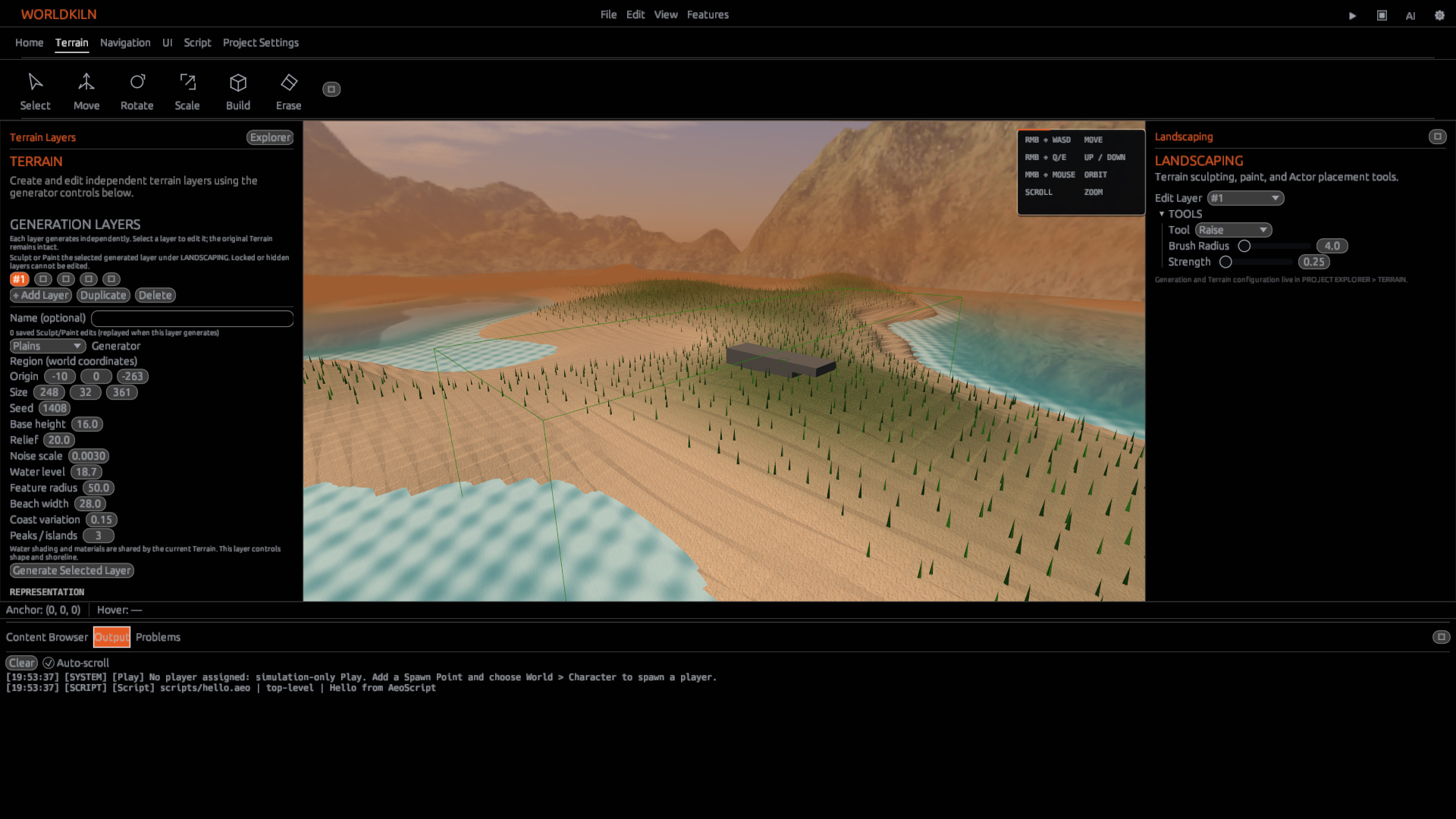
Open Landscaping → Tools in the Terrain workspace. Choose a tool and drag across the terrain in the viewport.
| Tool | Result |
|---|---|
| Raise | Raises the terrain surface |
| Lower | Lowers the terrain surface |
| Flatten | Brings the surface toward a target height |
| Smooth | Softens height differences between neighboring samples |
Adjust Brush Radius to change the area being edited. Adjust Strength to control the stroke's effect. With Flatten selected, choose Raise Only, Cut Only, or Both using Flatten Mode.
Try Raise on a small area, Smooth its edges, and use Flatten to create a level space.
Paint Terrain materials
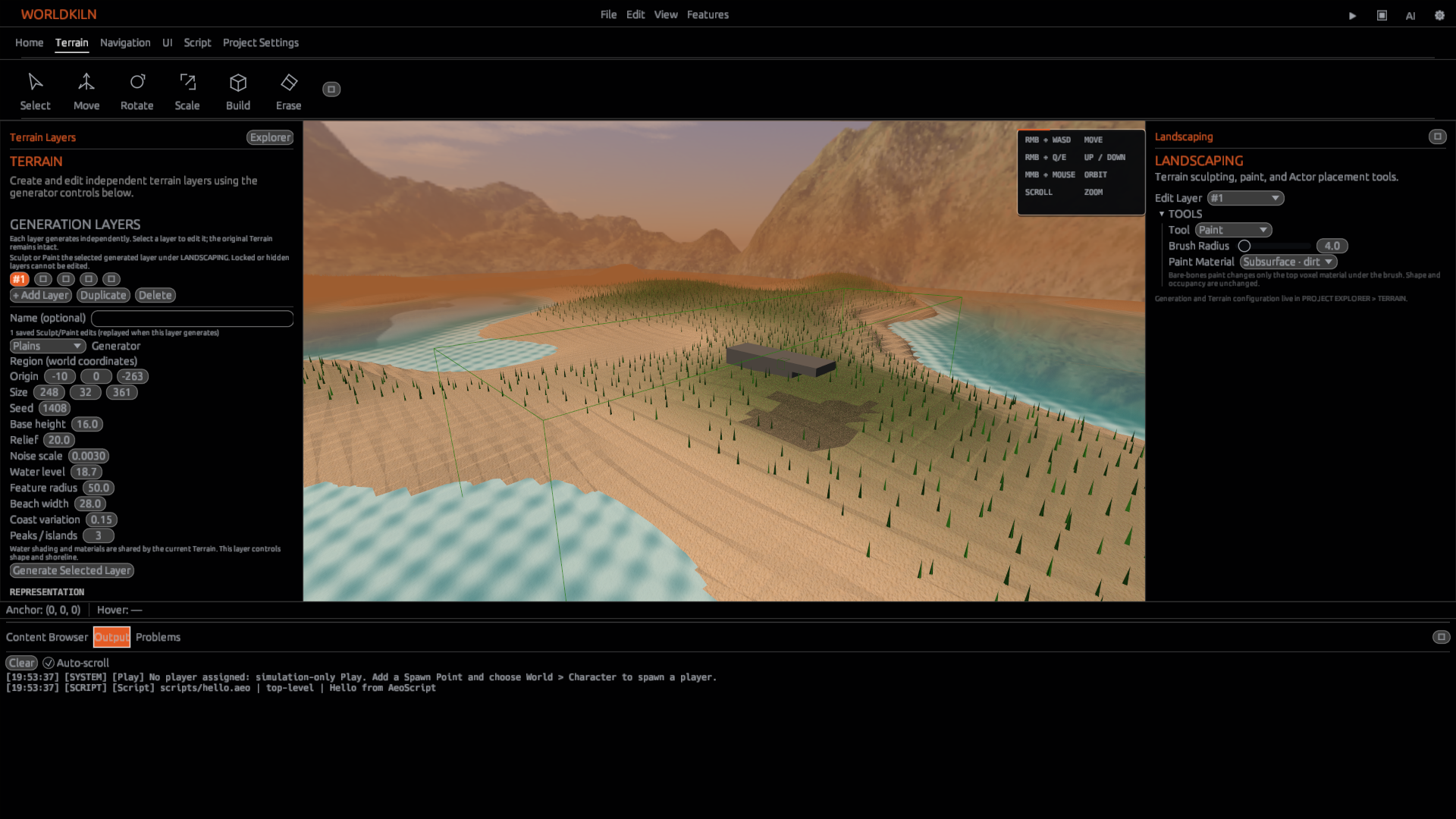
Select Paint under Landscaping → Tools. Choose Paint Material, then drag over the terrain surface.
The material choices include Surface, Subsurface, Rock, Sand, and Dirt. Surface, Subsurface, and Rock use the corresponding configured material. Set Brush Radius to control the painted area.
To change the textures used by the material roles, open the Terrain → Materials controls.
Configure grass and water
In the Terrain settings, open Grass. Use Enabled, Grass Density, and Grass Length to control procedural grass. Density ranges from 0 to 1, and length ranges from 0.25 to 4 studs.
Open Water Appearance to change World Water Level, Wave Height, Wave Speed, Foam Amount, and Foam Scale. Preview changes in the viewport to see their effect on the shoreline and water surface.
Generate Terrain with AeoScript [BETA]
Use terrain.generate(position, size) to generate Terrain during Play from the project's active generator settings.
terrain.generate([0, 0, 0], [64, 32, 64])
Both arguments are three-number arrays. The first is the world-space origin; the second gives the region dimensions.
You can also supply voxel samples and their materials with terrain.set_voxels():
terrain.set_voxels(
    [0, 0, 0],
    [2, 1, 2],
    ["grass", "rock"],
    [
        [0, 1.0],
        [0, 0.65],
        [1, 1.0],
        [1, 0.25]
    ]
)
Each voxel sample is [material_index, occupancy], with occupancy between 0 and 1. Samples are ordered X first, then Z, then Y. The total number of samples equals size.x * size.y * size.z.
An optional fifth argument to terrain.set_voxels() specifies the spacing in studs between samples; it defaults to 4.
These script-created Terrain volumes last for the current Play session.
See the reference entries for terrain.generate and terrain.set_voxels for arguments and limits.
Save your landscape
Use File → Save to save authored Terrain. Reopen the project and inspect your generated layers, material changes, and sculpted areas.
Next: Building and Physics and Collisions.