Find a feature without guessing its location
Goal: Use Worldkiln's searchable Features menu to open an editor tool or workspace, then recognize the difference between feature search, project search, and Project Settings. Start with a project open in the editor. You do not need a character or downloaded model.
 Screenshots are supplied separately.
1. Open Features
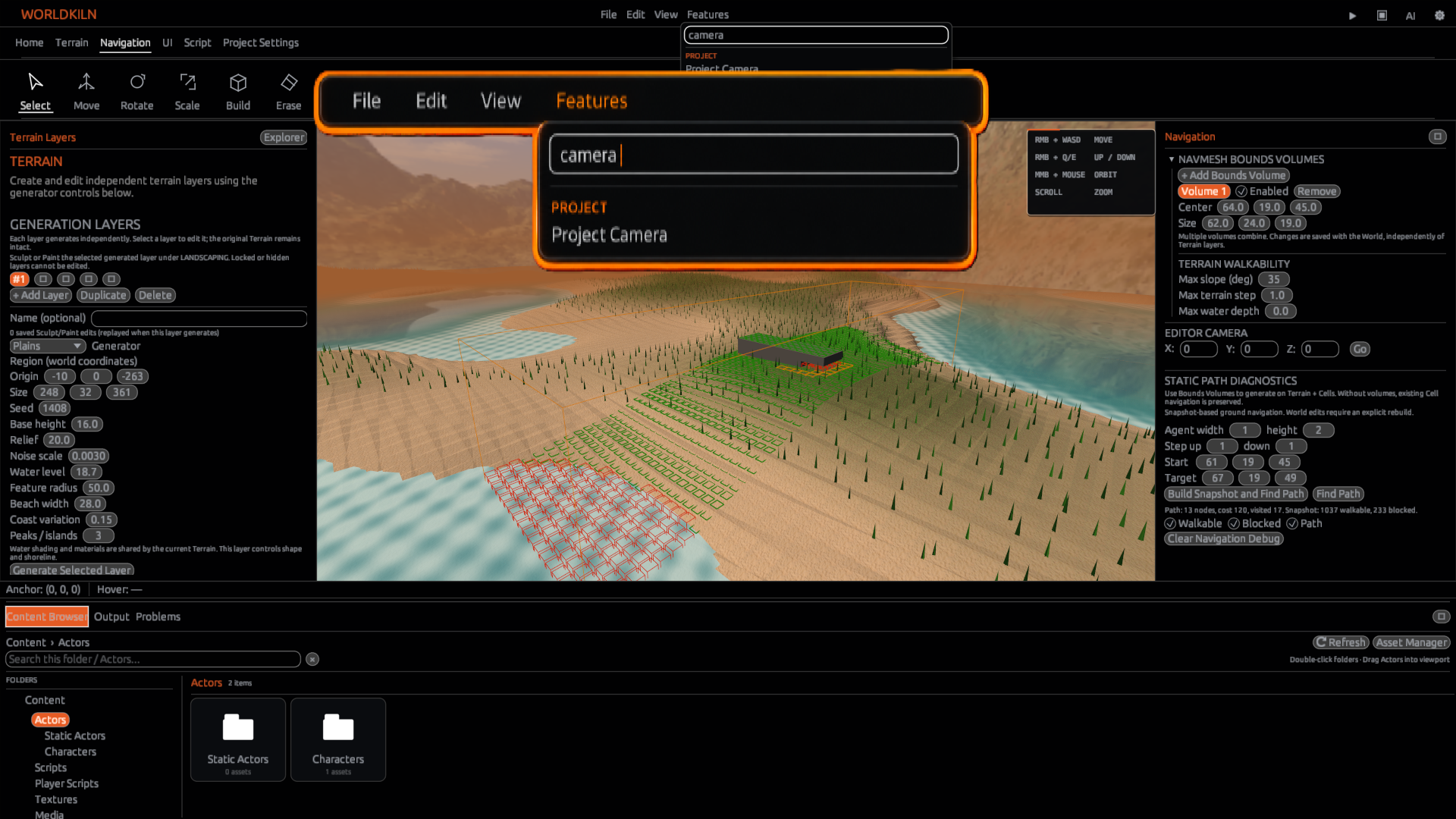
At the top of the editor, find the menu row containing File, Edit, View, and Features. Select Features. A searchable list opens with the prompt Find any editor feature....
You can scroll through groups or type a name. Search matches the feature's displayed name or group; it does not search script contents or objects in your World. Click a matching result to open its editor destination—there is no second submenu to navigate.
For example:
- Select Features.
- Type
camerainto Find any editor feature.... - Choose Project Camera.
- Worldkiln opens the project's Camera settings. This chooses project-specific options; it does not change the global editor preferences.
If the menu says No matching features., clear or shorten the query and use one of the labels below. Search for Project to see several project-related destinations.
2. Follow the destination appropriate to the task
| Task | What to choose | Where it takes you |
|---|---|---|
| Set the player's character, controller, or camera | Features → Player Character, Player Controller, or Project Camera | The corresponding Project Settings section. |
| Open general project configuration | Edit → Project Settings or Features → Project Settings | Project-owned settings, not editor appearance. |
| Find Terrain tools | Features → Terrain / Landscaping or Landscaping Tools | Terrain workspace and its authoring controls. Terrain painting is not Cell painting. |
| Find an object in a hierarchy | View → Project Explorer or Features → Project Explorer | The Project Explorer on the side of the editor. |
| Edit a selected object's properties | View → Properties or Features → Object Properties | The object Properties/Inspector panel. First select an object. |
| Browse project assets | View → Content Browser, or Features → Texture Assets / Audio Assets | The content browser and the chosen asset category. |
| Import or manage assets | View → Asset Manager or Features → Asset Manager / Import | Asset management; no bundled custom Actor assets are assumed. |
| Create or find AeoScript | Features → New AeoScript or Project Script Search | A new-script flow or script workspace search. |
| See errors and script output | View → Problems & Diagnostics / Output Log | The appropriate lower dock. |
| Change the editor theme, input, or shortcuts | Top-right Settings gear, or Features → Theme & Appearance / Input & Shortcuts | Application-wide editor settings, not Project Settings. |
Some tools, such as Terrain and experimental debugger capabilities, have their own release or BETA limitations. A menu entry alone does not guarantee that every operation within it is final.
3. Search for project objects separately
Use View → Project Explorer to show the project hierarchy. The Explorer's Search... box filters project items rather than editor features. For example, create a Cell using Building, then search for its name in Project Explorer. Clear the search to restore the unfiltered hierarchy.
AeoScript's Project Script Search searches code; the Features menu finds where that tool lives. These are different searches.
4. Recover a hidden panel
If you cannot find the Inspector, choose View → Properties. If the content browser or log is closed, reopen it through View. View → Reset layout restores the default panel arrangement when your workspace has become difficult to navigate; it also resets your customized layout.
Checkpoint
Open Features → Project Camera, return to Features → Home / Scene Editor, open View → Properties, then display View → Output Log. Each choice should navigate directly to the named destination. If your installed version lacks the Features menu, check the installed release version rather than inventing an alternate button.
Next: Using the editor, Editing objects, and Managing assets.