Goal
Display an interface element and make it respond to a click. This exercise uses the existing Panel, Text and Button controls and a standalone AeoScript file.
1. Author a document
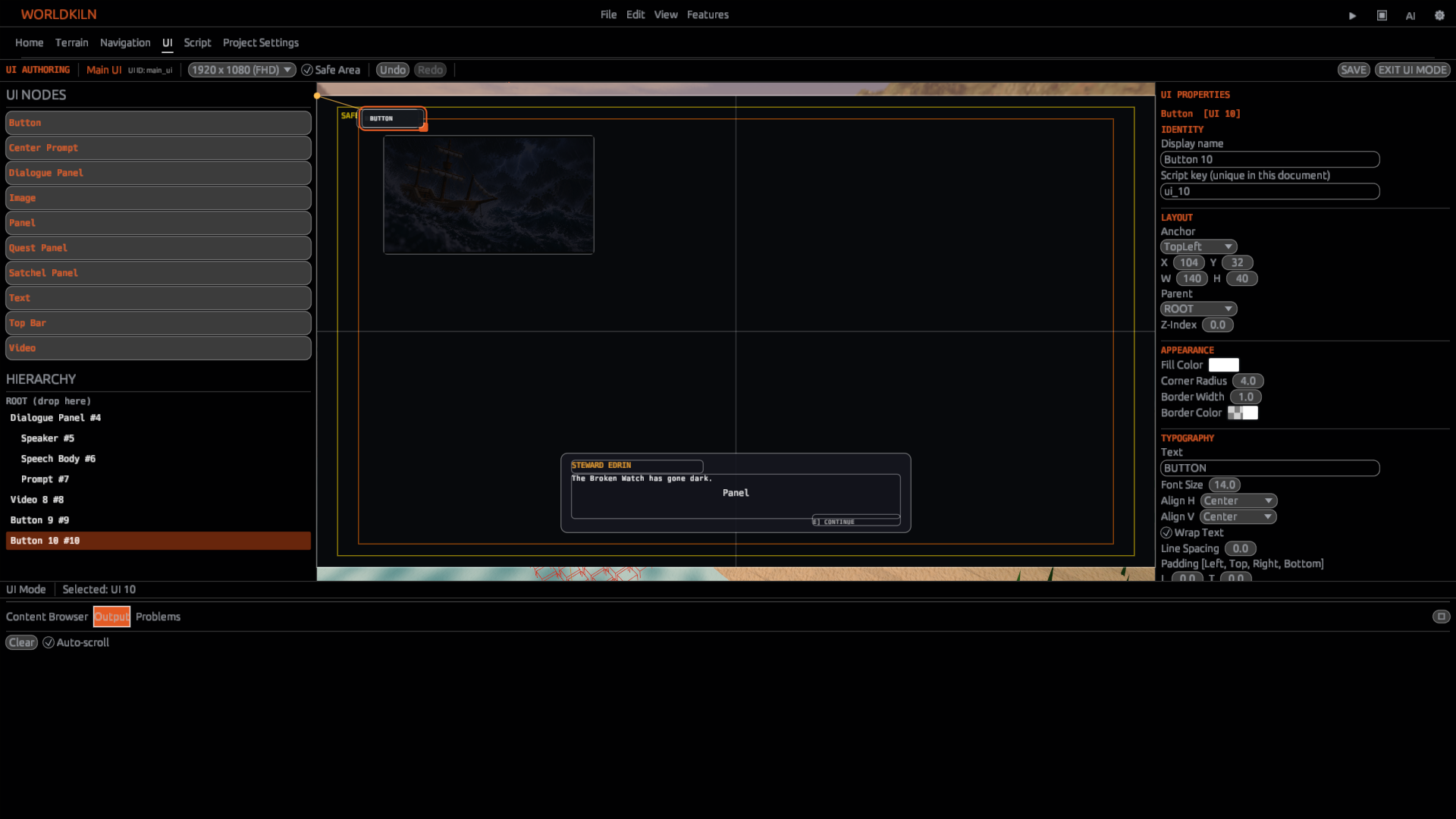
Open Worldkiln's UI authoring area. In the default or a new UI document, add a Panel, then Text and Button. Set visible text to something recognizable, such as Start. Set the Button's Script key to start_button; this key is not the display label.
2. Create the script
Create scripts/menu_click.aeo. The file runs independently on Play and does not need an Entity attachment.
const start = ui.find("start_button")
if start != nil {
    start.on_click = fn() {
        debug.log("Start clicked")
    }
}
3. Test
Save the UI document and script. Start Play, click the Button and look for Start clicked in Output.
Screenshot 23: assets/docs/tutorials/23-ui-button-click-output.png — Play UI and Output after click.
Checkpoint
Clicking the Button produces the message. If not, check the loaded UI document, exact Script key, saved script and the first error in Output. ui.find returns nil for a missing key, so avoid assuming the lookup succeeded.